How to Convert PDF to MIDI (Optical Music Recognition)

To turn PDF sheet music into MIDI, open the PDF in an optical music recognition (OMR) app, correct the notes it reads, then export a MIDI file. If the app saves MusicXML, open that file in a notation editor and export MIDI from there.
This is essentially like OCR software for music. Audiveris and MuseScore Studio can handle a scanned score for free. SmartScore and ScanScore can export MIDI directly, and Myriad PDFtoMusic is a separate option for PDFs made in a notation program.
Choose a tool based on how your PDF was made, how many staves it contains, and whether you want to edit the score or play the notes through a virtual instrument.
Contents
1. SmartScore by Musitek
Go to Musitek
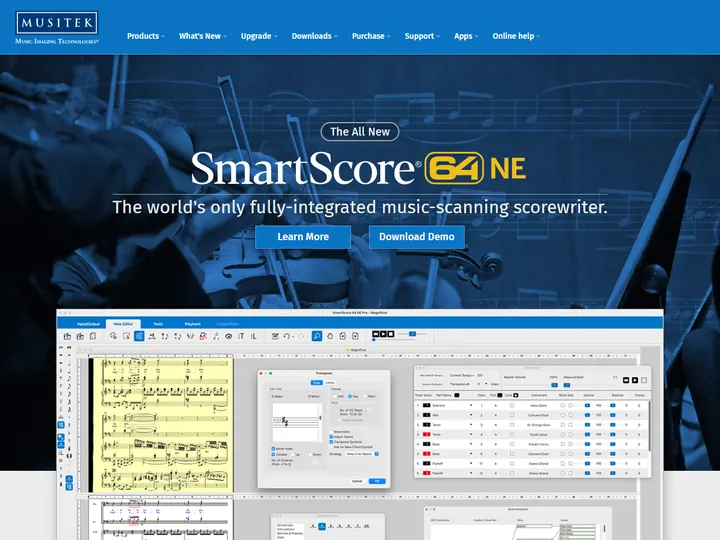
SmartScore is a Windows and macOS OMR application with several editions. If your goal is to send a PDF score to a DAW, choose SmartScore 64 NE MIDI Edition. It reads PDF files and scans, lets you check the notes in notation or a piano roll, and saves Type 0 or Type 1 MIDI.
MIDI Edition can read up to four staves per system. It omits MusicXML export and recognition of lyrics, guitar tab and percussion notation. For a full score or for MusicXML export, look at SmartScore 64 NE Professional. Musitek’s comparison shows which editions handle piano, guitar or a singer with accompaniment.
Try the MIDI Edition demo on a representative page before buying. You can process and play the score in the demo. Saving the MIDI file requires the paid edition, which you activate with the serial number and customer ID.
2. Sibelius

Go to Avid
Sibelius is a notation editor. If you already use it on Windows or Mac, use PhotoScore & NotateMe Lite for the scan. Avid includes the scanner in its Sibelius Ultimate trial. Open the PDF in PhotoScore, correct the recognition errors there, then send the score to Sibelius. Use File > Export > MIDI in the desktop editor.
The Lite scanner can read printed scores and PDFs. Complex rhythms, dynamics and markings may need manual work. The separate PhotoScore & NotateMe Ultimate 2020 handles more notation details and exports MIDI directly. It is a separate purchase from Sibelius Ultimate.
3. Audiveris (Free)
Go to Audiveris
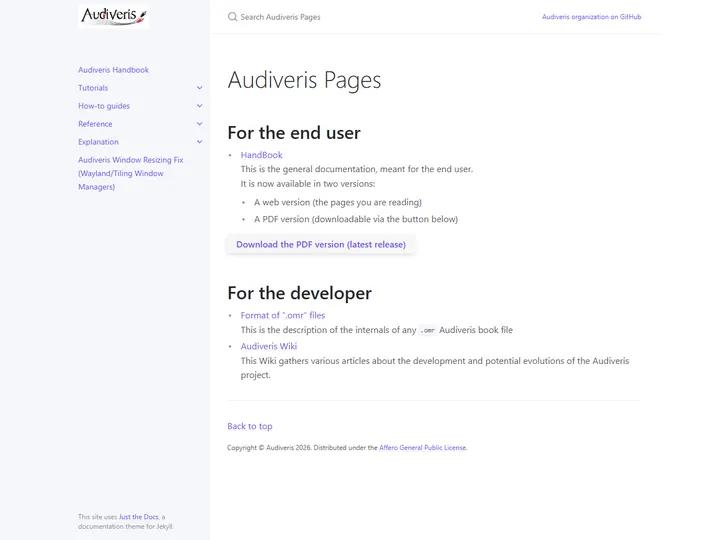
Audiveris is a free, open-source scanner for printed notation with installers for Windows, macOS and Linux. Open your PDF in the app, run recognition and compare the result with the original. Check any bars the program flags before exporting.
Audiveris exports MusicXML. Open that file in a notation editor such as MuseScore Studio, finish correcting the score and use File > Export to save a MIDI file.
4. ScanScore
Go to ScanScore
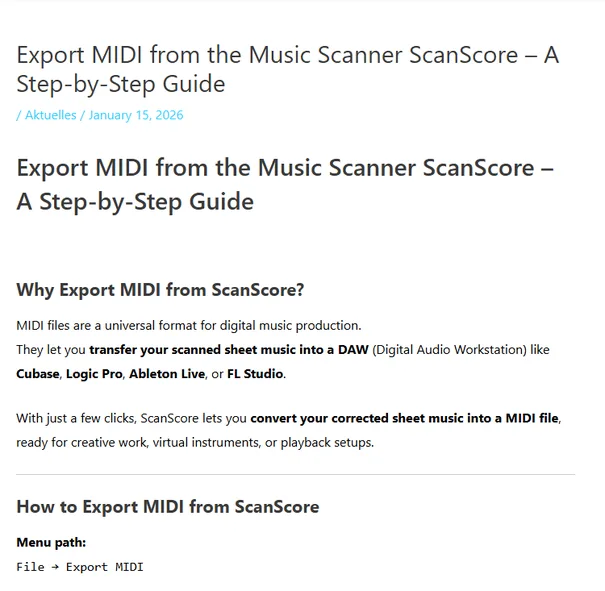
ScanScore 3.5 imports PDFs and photos on Windows and macOS. You can listen back, correct notes, transpose the score and then choose File > Export MIDI. Use MusicXML export when you want to keep editing the notation elsewhere.
The editions differ in how many staves they can read per system. Melody handles one staff, Ensemble handles up to four, and Professional handles larger scores. A two-staff piano part fits Ensemble. Choose Professional for a score that has more than four staves on a system.
The trial lets you check the scan and editing tools. Export requires an activated edition. Each paid licence lasts a year from activation, with no automatic renewal.
5. PDFtoMusic by Myriad
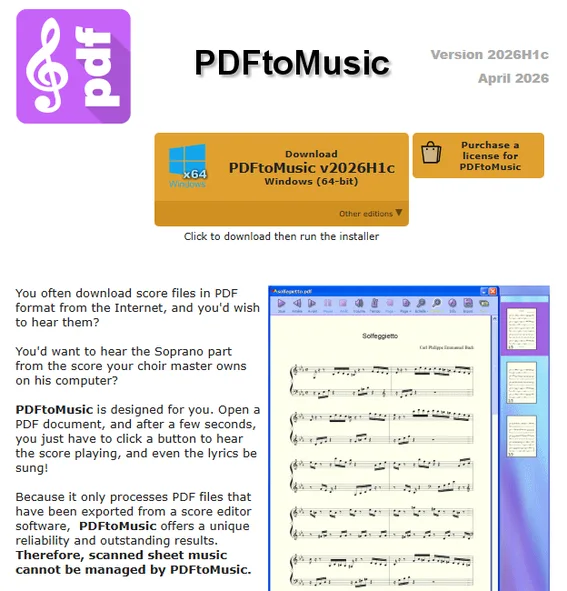
Go to Myriad PDFtoMusic
If your PDF was exported by a notation editor, try Myriad PDFtoMusic. It reads the notation from the PDF’s vector data and can export MIDI on Windows, macOS and Linux. For scans or photographs saved as PDFs, use an OMR app such as Audiveris or ScanScore.
Open the score, play it back, then choose MIDI in File > Export. The unregistered edition can export one page at a time. The standard paid licence unlocks the full document. Choose the separate Pro edition if you also need MusicXML.
6. PlayScore 2
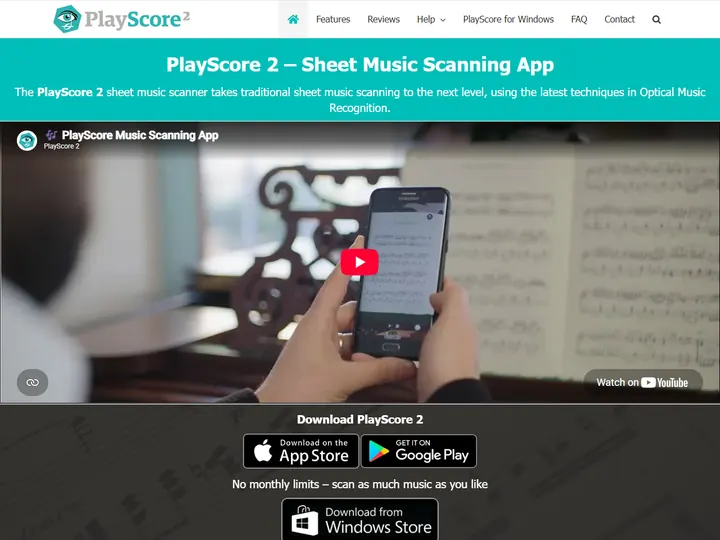
Go to PlayScore
PlayScore 2 is a mobile option for iOS and Android. The free app can play a photographed page and lets you loop passages or change the tempo. The Productivity subscription adds multipage documents from camera captures and images.
For a PDF, use the Professional subscription. Open the PDF in PlayScore 2, check it with playback and export MIDI from the document. Professional can also export MusicXML if you need to make notation corrections in another app.
PlayScore for Windows is a separate desktop app. If you are using it to export MusicXML, open that file in a notation editor and save MIDI there.
7. MuseScore Studio (Free)
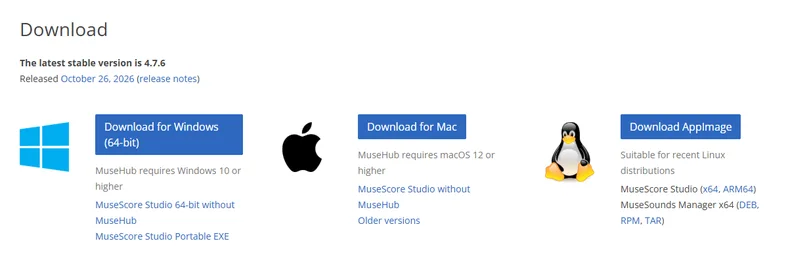
Go to the MuseScore Studio download page
MuseScore Studio is a free notation editor for Windows, macOS and Linux. In Studio 4.7.6 or later, go to Home > Scores > Convert or choose File > Convert, select your sheet music PDF and sign in to a MuseScore account. The conversion service is free and processes your file online.
When the score is ready, open it in Studio and check the notes, rhythms and staves. Choose File > Export, select MIDI and save it. If you already have a MusicXML file from a scanner such as Audiveris, you can open it directly in Studio without using Convert.
What is Optical Music Recognition
Optical Music Recognition lets a computer read printed sheet music, much as OCR reads the letters on a scanned page. An OMR app looks for staves, notes, rests and other markings to build a score it can play or export.
Use MusicXML when you want to edit the notation in another score editor. Use MIDI when you want the notes and timing in a DAW or a virtual instrument. Keep the MusicXML or the editable score alongside your MIDI file if you still need the full written parts.
Check the scan before exporting. For a piano part, listen for pitches that landed on the wrong staff, then check pickup bars, ties and repeats against the original. If the program consistently misses notes, try a cleaner scan with the page square and evenly lit.
Summary
For a scanned score, start with Audiveris if you want a free desktop route, then use MuseScore Studio to export MIDI. ScanScore or SmartScore can take you from a PDF to MIDI in one app. If the PDF came straight from a notation editor, PDFtoMusic gives you another way to recover the notes.
Try one page first and listen to the converted score before sending it to your DAW. It is easier to fix a missed accidental or an extra rest while you still have the score in front of you.
Featured Image (Right) by: “Ableton Live” by Robert Gourley is licensed under CC BY 2.0