
Online Microphone Test

Press the start button below to start the mic test and accept the notification box if it shows up on your browser. Lines will begin to show in the box below as audio is detected.
Device names appear after you allow microphone access.
Speak at your usual volume. A moving waveform and meter mean your browser is receiving audio.
Microphone access requires HTTPS or localhost. No recording is uploaded or saved by Musician Wave.
Contents
Using the Microphone Test
Use the microphone test before a call, lesson or recording to check that your browser is receiving the right input. You can also record a short sample and listen for background noise or a muffled sound.
Instructions
- Click Start microphone test and allow microphone access when your browser asks.
- Choose your microphone under INPUT DEVICE once the device names appear. Speak at your normal volume and watch the waveform and input meter.
- Click Record a sample, speak for a few seconds, then click the recording button again to finish. Samples stop after 20 seconds.
- Use the playback controls to listen back. Download recording keeps a copy; Clear removes the sample from this test. Click Stop test when finished.
What the microphone levels mean
A moving waveform means audio is reaching the browser. Values closer to 0 dBFS are louder. If the peak keeps reaching the top of the scale, reduce the input gain or move a little farther away. The meter cannot tell you whether your voice sounds clear, so listen to the sample as well.
What to do if your microphone is not responding
- Check the browser's microphone permission and your device's input settings. An external microphone needs to be connected and unmuted.
- Try the other listed inputs if you are hearing the laptop microphone instead of your headset. Stop and restart after reconnecting a device.
- If the test works here but fails in another app, check that app's own microphone selection and permissions.
Audio is processed in your browser and is not uploaded by this tool. On a phone, the permission request may appear as a separate pop-up. Keep any recording you need before refreshing the page.
Your privacy is important to us. No audio is being sent to our servers during this online mic test. This test runs fully on your web browser and no software installation is required.
Instructions:
- Click the “Start Mic Test” button.
- Click “Allow” if your browser asks for permission to use the microphone.
- You should see lines appearing in the box above as audio is being detected.
- If you don’t see lines, then see our guide below!
If it’s not working for you then scroll down, as we explain everything below!
To perform the test, you must give this website access to your microphone. It may show up in a similar manner to the following screenshot. However, this will vary depending on your browser. It may show up on the left or right side of the address bar or URL bar with the notification.
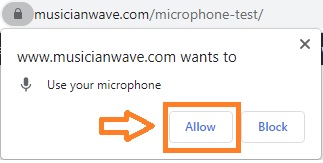
On a mobile device it may show up with a pop-up box in the middle of the screen asking for permission, or you may need to scroll up to the top of your screen for it to appear.
Note, if you don’t click accept then an error may appear in the box above. In this case, simply click allow on the notification and refresh the page to run this microphone test tool again. You should then be able to run the mic test without any issues.
What to do if your mic is not picking up audio
If you’re not seeing anything appear in the mic test box or if you are having other microphone issues, then go through the following steps:
- Make sure you’ve clicked allow on the browser notification: If a browser notification appears asking for permission to use the microphone, please make sure to click allow and then refresh the page. Then try to run the test again.
- Speak louder into the microphone: You may need to speak a bit louder into the mic for the lines to appear on the waveform box above.
- Make sure your mic isn’t muted. Open sound settings on your device and make sure that the input volume is high for your device and make sure it’s not muted.
- If you are using an external mic, then make sure that it’s plugged in correctly, either via the audio jack slot or the USB slot, depending on the cable of your device.
- Make sure that the correct input device is being used. Go to your audio options on your device and make sure that the mic you want to use is set as the default device.
- Increase your microphone volume: If there is a physical switch or slider on your microphone, then make sure it’s put to its loudest setting. Also, go to the input volume settings on your device and make sure the volume is at its highest.
Where this mic test works
This online mic test works in the browser across a variety of devices and platforms, such as on laptop, mac, pc, and phone. We’ve tested it on google chrome, Microsoft edge, Safari, firefox, and mobile devices and it works great. It also works with your built-in device’s microphone, or with any external hardware mic, Bluetooth microphone, headset microphone, the mic on your camera, or one going through an interface.
What to do if your mic isn’t working on software or an app
If your mic is being picked up correctly above but isn’t working on the app you want to use, then check the audio input settings on your software. For example, check out the following useful guides as an example:
- Why Is Your Mic So Quiet on PC?
- OBS Not Picking Up Mic
- Discord Not Picking Up Mic
- Audacity Not Picking Up Mic
- Why Your Mic Sounds Muffled (And How to Fix It)
Summary
Our online mic test allows you to test your microphone without the use of any additional software. Whether you need to test your mic for an online conference call, podcast, or recording, it’s great to know that audio is coming through on your mic beforehand.


