Reaper vs Audacity – Which is Better?
REAPER and Audacity are both useful for recording and editing audio. REAPER is the better choice for music production with MIDI instruments, automation, and detailed mixing. Audacity is a free audio editor well suited to cutting recordings, assembling podcasts, and working directly with waveforms.
There are some similarities between REAPER and Audacity, but REAPER offers a more complete music-production environment, with the recording, MIDI, and mixing functions associated with DAWs such as Logic Pro, Ableton Live, and FL Studio. Audacity remains a versatile recording and editing tool, and its redesigned version 4 interface is a substantial change from older releases.
REAPER 7.84 and Audacity 4.0.1 are the current versions. Choose REAPER if you need a full DAW; choose Audacity if audio editing covers the job and you want a free application. REAPER’s fully functional 60-day evaluation is a trial, not a free licence for ongoing use.
Contents
Key Differences Between REAPER and Audacity
- Audacity is free and open-source; REAPER requires a paid licence after its evaluation. REAPER’s discounted and commercial licences provide the same software features. Eligibility depends on how you use it.
- REAPER records and edits MIDI. Its piano roll can change notes, timing, velocity, and controller data. Audacity 4.0 does not have Note/MIDI tracks or a MIDI-recording workflow.
- REAPER hosts third-party instruments and effects. Audacity hosts supported audio effects, not synthesizers or virtual instruments.
- REAPER includes some basic instruments. ReaSynth and ReaSamplOMatic5000 are useful starting tools, though they are not a large ready-made instrument library. Audacity has audio generators rather than a playable instrument collection.
- REAPER has extensive automation and controller support. Audacity has clip gain envelopes and real-time effects, but it does not offer REAPER’s comparable DAW automation and control-surface workflow.
- Both can edit multitrack audio. REAPER is better equipped for routed mixes and combined audio/MIDI sessions. Audacity keeps the focus on editing recordings; version 4.0 also lacks Audacity 3’s separate Mixer and Macro Manager.
Interface
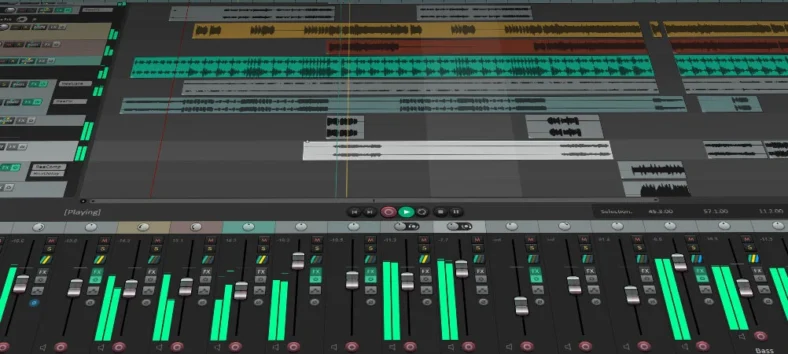
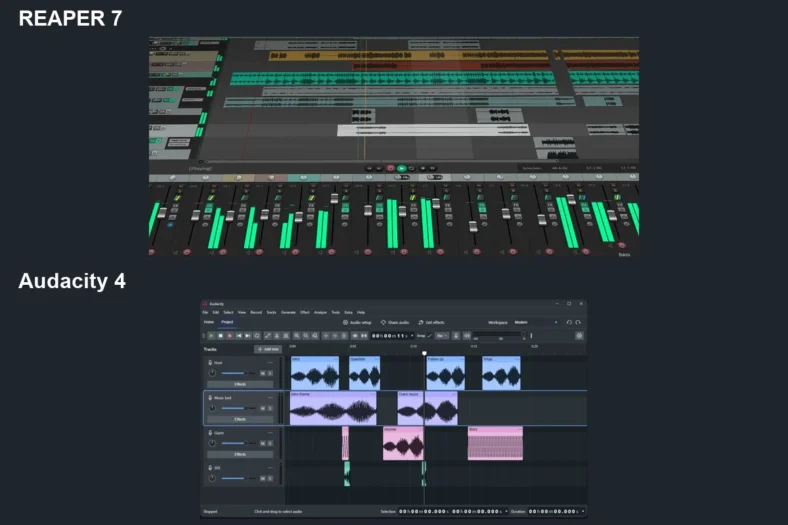
REAPER’s interface should be familiar to most DAW users: there is a horizontal multitrack arrangement view, track controls, and a mixer. Despite its conventional setup, REAPER is designed around customization. A new project starts empty, and you add tracks and arrange the tools around your workflow.
Many REAPER tools can open in separate windows, including the MIDI editor and effects. You can also dock windows and save layouts as screensets. The piano roll does not have to remain in a floating pop-up, and automation can be edited in lanes alongside the arrangement. This helps keep a busy project manageable on one screen.
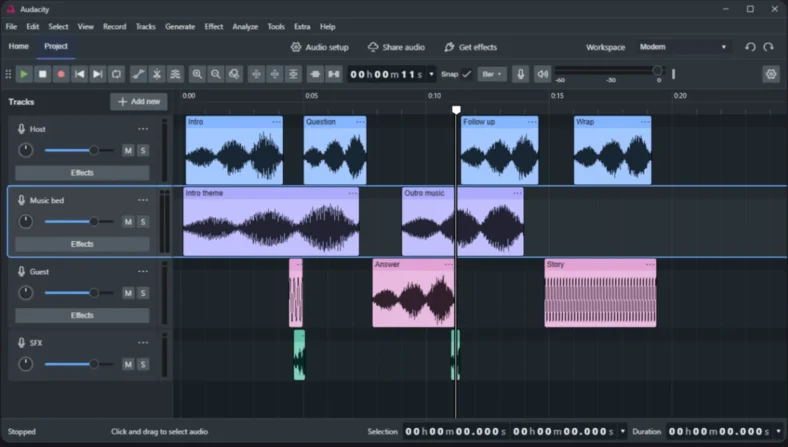
Audacity 4 has a rebuilt interface with movable panels, dockable toolbars, themes, and saved Workspaces. Modern, Classic, and Music layouts offer different starting points. Calling Audacity’s interface an unchangeable, outdated layout no longer describes the current release.
The main difference is the job each interface supports. REAPER gives you a DAW arrangement and mixing environment for audio and MIDI. Audacity puts recorded clips, waveforms, and audio-editing controls at the center of the session.
OS Compatibility
REAPER and Audacity are both available for Windows, macOS, and Linux. Use the installer that matches your processor and operating system rather than assuming every download has the same requirements or plugin support.
REAPER’s download page lists Windows XP through Windows 11 and macOS 10.5 through macOS 26, with separate builds for older systems. Its Universal Mac download is recommended for modern Intel and Apple Silicon Macs running macOS 10.15 or later. Linux downloads cover Intel and ARM architectures, while the Windows ARM64EC build is labeled beta. Individual plugins and hardware drivers can have stricter requirements than REAPER itself.
Audacity is tested on Windows 10 and 11, macOS 14 and 15, and Ubuntu 22.04. Its official Linux AppImage requires FUSE 2. The separate ARM64-only downloads for Windows, Mac, and Linux explicitly lack plugin support; the Universal Mac download is a distinct build. Older operating systems may need a different build or an older Audacity release; check the developer’s requirements instead of relying on an old compatibility list.
CPU Usage
REAPER includes a Performance Meter for monitoring the load of a project. To make the most of REAPER, pay attention to the meter and freeze tracks using demanding instruments or effects when you no longer need to adjust them live. Large Kontakt libraries and complex synth patches such as those in Omnisphere can require much more memory or processing than the DAW itself.
Audacity can be a light setup for straightforward recording and editing. I’ve never found any performance issues while working with Audacity, even on an outdated computer. That experience is not a guarantee for every project: track count, effects, disk access, audio drivers, and buffer settings still matter.
If recording or monitoring breaks up, check the input device and buffer settings before blaming the editor. Turning off software playthrough can be useful when you are monitoring directly through an audio interface, but it is not a universal fix for CPU or recording problems.
Working with Audio
You can edit audio in REAPER by recording or dragging samples to the arrangement view. Media items can be split, moved, trimmed, looped, and stretched. The Media Item Properties window provides more detailed settings, including pitch, playback rate, and volume or pan adjustments.
REAPER is particularly useful when you want to build a mix around those edits. You can route tracks through buses, use effects on tracks or individual takes, and automate changes. Track lanes and swipe comping help assemble a performance from several takes.
In Audacity 4, clips can be selected and grouped directly, with handles for trimming and stretching. Standard editing shortcuts still help: Ctrl+C and Ctrl+V copy and paste on Windows, while Ctrl+X cuts the selected audio. Separate old tool modes have been replaced with context-sensitive controls, so instructions written for earlier versions may not match.
Audacity is no longer an entirely destructive editor. It supports non-destructive clip trimming and real-time effects as well as processing that changes selected audio. Keep a project copy before major edits, and export an audio file when you want a finished recording to share.
Working with MIDI
One useful aspect of REAPER is that a track can contain both audio and MIDI items. You do not need to choose a permanently separate track type before starting. Select a MIDI input, add an instrument, and record a performance, or draw notes into a MIDI item.
REAPER’s piano roll lets you move and transpose notes, change their lengths and velocity, and edit controller information. It can be docked or floated to suit your screen. Different takes and lanes also help you compare performances and choose the best material.
Audacity 4.0 does not include Note/MIDI tracks. The limited MIDI-file display and playback available in older Audacity versions should not be confused with a DAW sequencer, and it is not present in the current version 4.0 workflow.
You can still record the audio output of a synthesizer or import audio rendered by another program into Audacity. The result is an audio recording: you cannot change its MIDI notes or swap its instrument sound afterward. For that work, use REAPER or another MIDI-capable DAW.
Plugin Compatibility and Performance
REAPER supports VST2, VST3, CLAP, LV2, and JSFX plugins, plus Audio Units on macOS and DirectX plugins on Windows. It can host both instruments and effects. Compatibility still depends on the plugin’s operating-system support and processor architecture; no DAW runs every plugin on every platform.
Third-party plugins are organized in REAPER’s FX browser, where you can search by name and category. Effects can run in real time, and REAPER can compensate for plugin latency. Extensive routing and automation let you use those plugins as part of a larger production session.
Audacity 4 supports VST3 and Nyquist effects, with Audio Units on macOS and LV2 on Linux. Its separate ARM64-only builds lack plugin support; the Universal Mac build is a different download. VAMP and LADSPA hosting from Audacity 3 are absent from version 4.0, so check an existing effect chain before upgrading.
Audacity does not load virtual instruments. Copying a synth plugin into an Audacity folder will not make it playable. Install an appropriate effect in its supported location and enable it through Audacity’s plugin controls; use a DAW such as REAPER for instrument plugins.
Stock Instrument Plugins
REAPER includes ReaSynth, a basic synthesizer, and ReaSamplOMatic5000, a MIDI-controlled sample player. It also has a collection of JSFX instruments and processing tools. These are practical building blocks, but producers who want a large collection of realistic instruments or ready-made sounds may still want additional plugins or libraries.
REAPER also comes with useful audio effects such as ReaEQ, ReaVerb, ReaDelay, and ReaGate. You can begin recording and mixing without buying a separate effect for every task.
Audacity includes built-in audio effects, generators, and analysis tools, but it is not a virtual-instrument environment. Its version 4 release notes flag some missing effects, analyzers, and export features from version 3. Confirm that an effect you depend on is available rather than assuming an older tutorial applies unchanged.
Hardware and Software Controllers
REAPER has configurable MIDI assignments for track and transport controls, plugin parameters, and actions. It also supports control-surface protocols and two-way OSC. That makes it the more suitable choice if you want to record MIDI performances, move faders from a controller, or build a customized remote-control setup.
Audacity is not a MIDI-instrument recording host. A translation utility such as Bome’s MIDI Translator Pro can map MIDI messages to computer keystrokes for controlling shortcuts, but that is a separate paid tool. It does not add a piano roll or virtual-instrument hosting to Audacity, and it is not required for ordinary recording and editing.
Verdict
REAPER is better for music producers who need to record instruments, edit MIDI, route a mix, and automate plugins in one project. It is also useful for detailed podcast and voice-production sessions; spoken audio is not a reason to rule out a DAW.
Audacity is a sensible choice for audio-only work when you want a free editor. You can still assemble music from recordings, as the original Audacity music example illustrates, but MIDI instruments and a full DAW mixing workflow are reasons to choose REAPER. Check Audacity 4’s missing legacy tools if you rely on the older Mixer or batch-processing macros.
Try REAPER during its 60-day evaluation, then buy the appropriate licence if you continue using it. The discounted and commercial licences have the same features. REAPER uses a DRM-free licence key rather than a subscription, and a new licence includes updates through version 8.99. Audacity’s core desktop editor remains free; optional services or third-party effects are separate.